Guide
Swing Ace helps you swing at the same tempo every time, to make your swing repeatable. It makes your practice more effective, not only at the range but also when you practice swings at home.
With Apple Watch, you can also measure your own tempo and check whether you’re swinging at the tempo you picked in the iPhone app.
Quick start (3 steps)
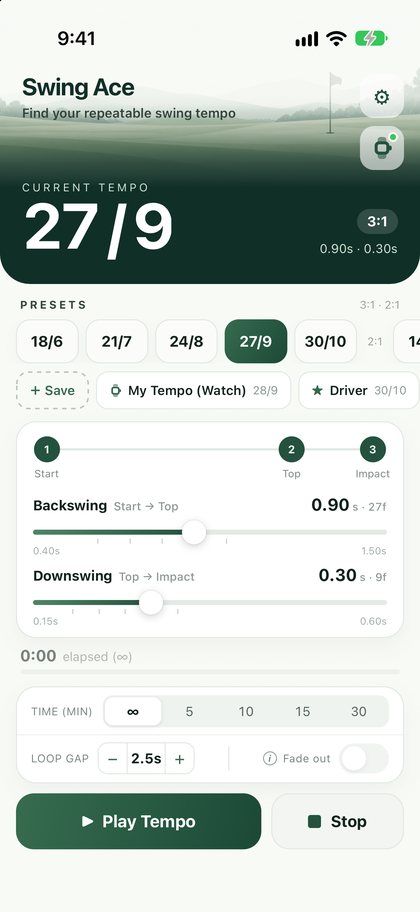
- 1Pick a tempo: if unsure, tap 27/9.
- 2Tap Play Tempo: three tones play, then repeat after a short gap.
- 3Swing to the tones: start on the first, reach the top on the second, hit impact on the third.
While playing, it keeps going even with the screen locked.
To stop, tap the Stop button
 12
- About swing tempo
- How to swing to the tones
- How to practice (range and home)
- Your own tempo, one for each club
- Practice time and Fade out
- With Apple Watch
- Apple Watch records
- Settings
- Troubleshooting
1. About swing tempo
Your swing tempo is the time from takeaway to the top (backswing) and from the top to impact (downswing).
- Tempo tends to change between good days and bad days (rushing, a pause at the top). When your tempo stays the same, your swing becomes more repeatable.
- Many tour pros take about three times as long for the backswing as for the downswing (3:1). Swing Ace’s presets use 3:1.
- Reading the numbers: “27/9” is the length of the backswing and downswing (in 1/30 s). Bigger numbers are slower: 30/10 is the slowest, 18/6 the quickest.
2. How to swing to the tones
- Start moving on the first tone. If you wait to hear it before moving, you will be late. Be set up and ready before it sounds.
- Reach the top on the second tone and impact on the third.
- A few practice swings to the tones, without a ball, make it easier to get the feel.
- Which tempo? Start with 27/9. If it feels rushed, try 30/10 (slower); if it drags, try 24/8 (quicker). With Apple Watch you can also measure your own tempo (Apple Watch app tab).
3. How to practice
At the range (suggested routine)
- With earphones you won’t bother others and you’ll hear the tones clearly. Keep the volume low enough to hear what’s around you. It keeps playing with the screen locked.
- Make about five practice swings to the tones.
- Set a practice time (for example 30 minutes), turn on Fade out and hit balls to the tones (5).
- In the last 2 minutes the tones fade away. See if you can keep the same tempo without them.
With Apple Watch, open Tempo Check while the tones play: the iPhone’s tempo becomes the target automatically, so you can swing to the tones and check every swing (6. With Apple Watch).
At home
Practice swings to the tones are good practice on their own. With Apple Watch you can check the tempo of every practice swing (Tempo Check). Make sure you have enough room to swing.
The Rules of Golf do not allow using sounds, vibrations or similar aids for swing tempo during a round, so please don’t use Swing Ace in competitions or other rounds where official scores are recorded.
4. Your own tempo, one for each club
- A Drag the Backswing and Downswing sliders to change them in 0.01-second steps.
- B Tap + Save to save the current tempo with a name (Driver, Iron and so on). Next time, just tap the name.
- Press and hold a saved preset to rename, overwrite or delete it.
- ★ marks presets saved on iPhone; the watch mark shows ones measured and added on Apple Watch.
AB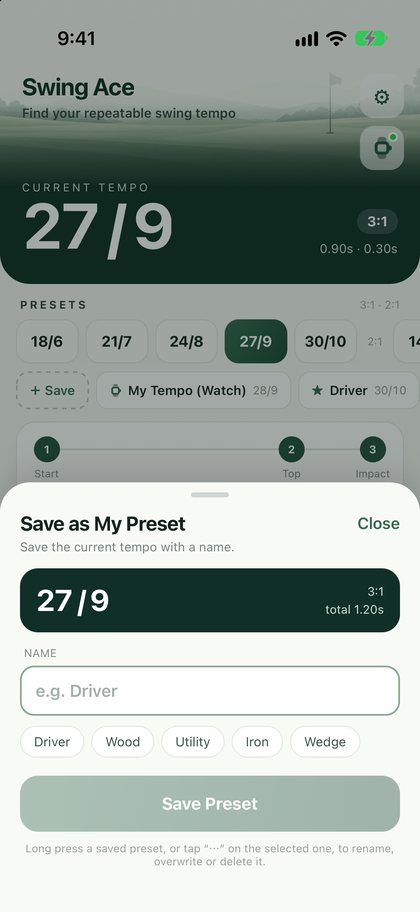
5. Practice time and Fade out
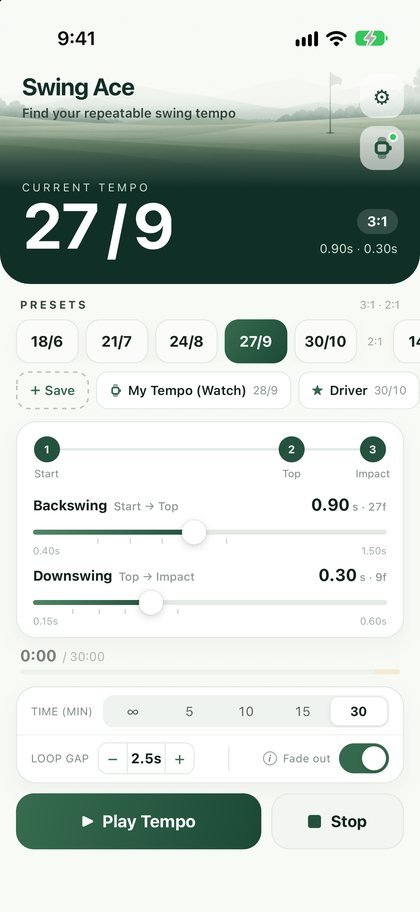
- A Under TIME (MIN), pick how long to practice (∞, 5, 10, 15 or 30 minutes). It stops when time is up.
- B Turn on Fade out and the tones get quieter over the last 2 minutes until they stop, so you learn to keep the same tempo without them. Tap the words “Fade out” for an explanation.
- LOOP GAP is the pause between the third tone and the next first tone. Make it longer if you need more time to get ready for the next ball.
- With the time set to ∞, playback stops 60 minutes after it starts so a forgotten loop doesn’t run forever. It also stops when your earphones are disconnected.
 AB
6. With Apple Watch
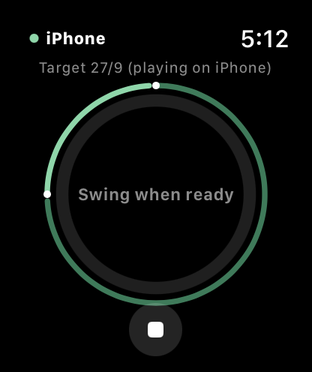
Open Tempo Check on Apple Watch while it plays and the playing tempo is set as the target. You can see how far off each swing is from it. There’s no need to pick a target.
If you change the tempo on iPhone, the target on Apple Watch changes too. See the Apple Watch app tab for more.
7. Apple Watch records
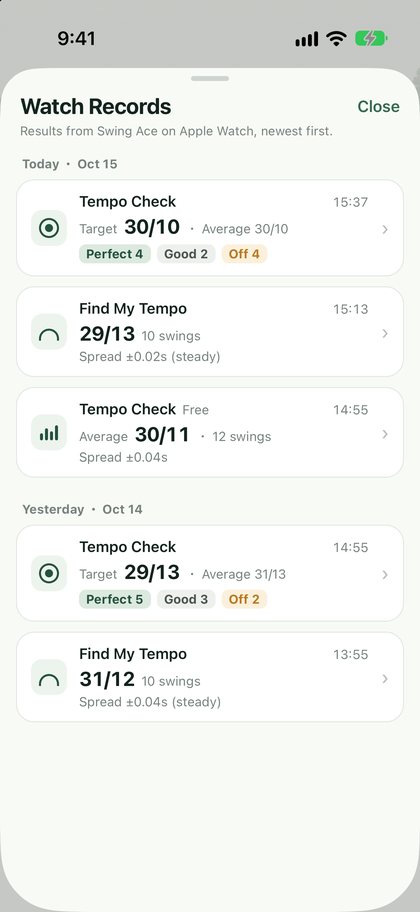
- Results measured on Apple Watch show up on iPhone. Tap the watch button under the gear at the top right. A green dot means there are new records.
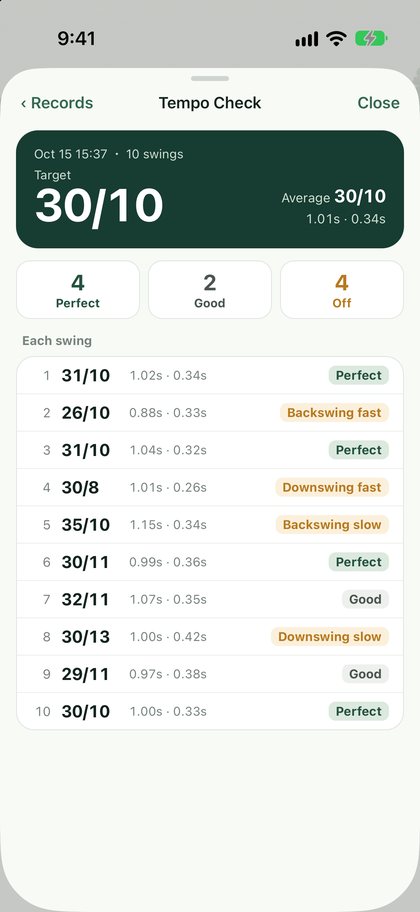
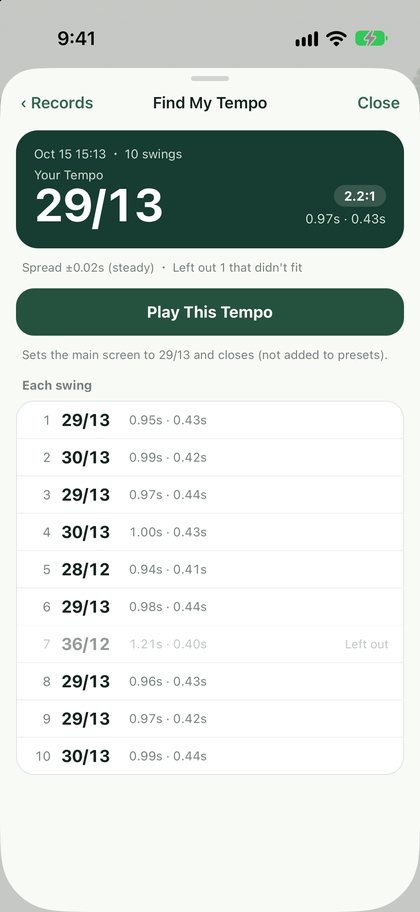
- Records are listed by day, newest first. Tap one to see each swing, and tap Play This Tempo to play that tempo.
- Swipe a record to the left to delete it.
8. Settings (gear at the top right)
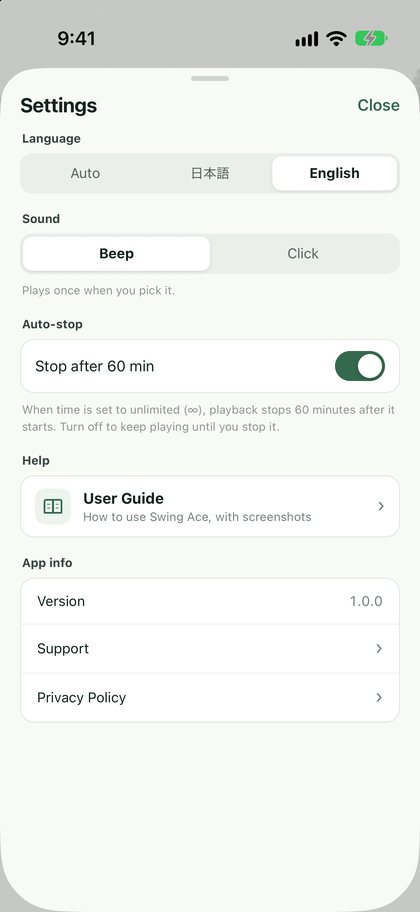
- Language: Auto (follows iPhone), 日本語 or English
- Sound: Beep or Click (pick the one you hear best)
- Auto-stop: whether to stop after 60 minutes when the time is set to ∞
9. Troubleshooting
I can’t hear the tones, or they’re quiet
Turn up the volume with the buttons on the side of iPhone (it plays even in silent mode). The speaker can be hard to hear at the range, so earphones are recommended. Check that Bluetooth earphones are connected.
It stopped
It stops by itself when the practice time is over, 60 minutes after starting with the time set to ∞, or when your earphones are disconnected. Tap Play Tempo again.
For other questions, see Support.
What you can do on Apple Watch
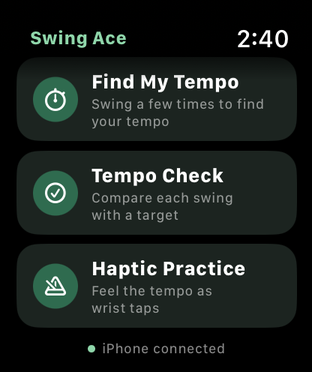
- 1Find My Tempo: swing 5 to 10 times to learn your own tempo.
- 2Tempo Check: compare each swing with a target tempo.
- 3Haptic Practice: feel the tempo as taps on your wrist.
Results are sent to iPhone, where you can look back on them and practice with their tones. No Apple Watch? The iPhone app is all you need.
Tempos measured on Apple Watch are estimates calculated from your wrist movement. Depending on how you wear it and how you swing, they may differ slightly from your actual tempo.
- Setting up (models, installing, which wrist)
- Find My Tempo: learn your tempo
- Tempo Check: check every swing
- Haptic Practice
- Troubleshooting
1. Setting up
- Supported models: Apple Watch Series 4 or later, SE and Ultra (watchOS 10 or later).
- Installing: installing Swing Ace on iPhone also installs it on Apple Watch. If it doesn’t appear, open the Watch app on iPhone, go to My Watch, scroll to Available Apps and tap Install next to Swing Ace.
- Which wrist: right-handed golfers wear it on the left wrist, left-handed golfers on the right. Set Settings → General → Watch Orientation on Apple Watch to match. The first time you measure, it asks whether you swing right- or left-handed.
- Permissions: if you are asked for permission for workouts or motion the first time you measure, tap Allow. They let it keep measuring while your wrist is down. Your records are kept only on your Apple Watch and iPhone and are never sent to the developer or anyone else (nothing is saved to Health either).
- Open Swing Ace on Apple Watch to see its three features: Find My Tempo, Tempo Check and Haptic Practice.
2. Find My Tempo: learn your tempo from practice swings
- Tap Find My Tempo and measuring starts. After “Getting ready…”, a tap on your wrist tells you it’s ready.
- Swing as you usually do (practice swings or real shots). Each counted swing gives one tap, so you don’t need to look at the screen.
- Swing at least 5 times. At the 5th swing you feel two taps and can tap A See Result to finish. You can stop at 5, but the more swings, the more accurate (the result comes automatically after the 10th).
- The result shows your tempo (for example 28/9). Tap B + Add to My Presets and it appears in My Presets on iPhone as “My Tempo (Watch)”, ready to practice with its tones.
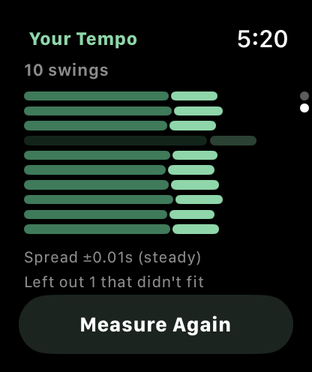
- Turn the Digital Crown (the dial on the side) to see each swing as a bar. A swing far off from the others is left out (shown dark).
The result also appears in Watch Records on iPhone. For how to read the numbers, see “About swing tempo” in the iPhone app tab.
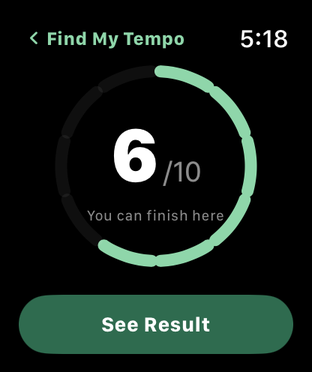 A
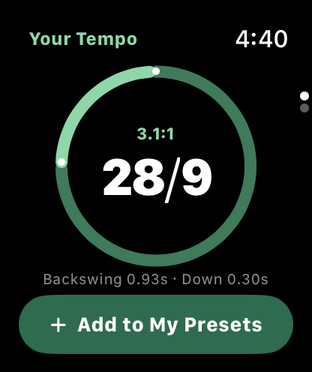 B
On iPhone
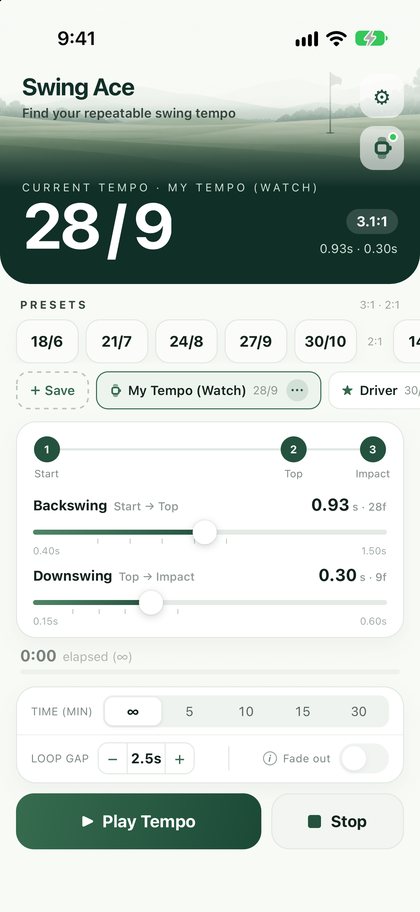
and it’s added here
of each swing
3. Tempo Check: check your tempo on every swing
Compare each swing with a target tempo and see whether it matched and what was off. There are two ways to use it.
Open it while iPhone plays the tones (recommended)
While iPhone plays a tempo, that tempo is set as the target automatically. There’s no need to pick a target. Swing to the tones and check every swing.
- In Swing Ace on iPhone, pick the tempo you want to practice (for example 27/9) and tap Play Tempo.
- While it plays, open Tempo Check on Apple Watch. You’ll see “● iPhone” at the top left and “Target 27/9 (playing on iPhone)”.
- Swing to the tones and each swing is graded Perfect, Good or Off.
If you change the tempo on iPhone, the target on Apple Watch changes too (the swings so far are saved, and counting starts again at the new tempo).
On Apple Watch alone (pick a target)
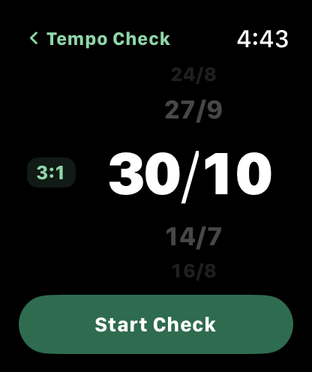
- Tap Tempo Check, A turn the Digital Crown (the dial on the side) to pick a target tempo and B tap Start Check. You can also pick a tempo from Find My Tempo or one saved on iPhone.
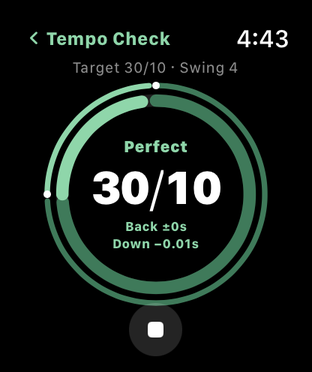
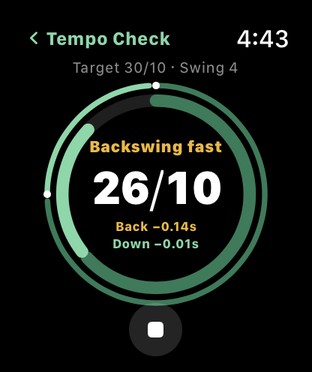
- Every swing shows how close it was: Perfect, Good (nearly) or Off (with what was off, such as “Backswing fast”).
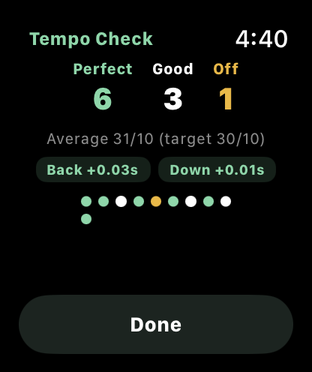
- Tap ■ at the bottom to finish and see how many were Perfect, Good and Off.
The rings: the thin outer ring is the target, the thick inner ring is this swing. Perfect is within ±0.05 s on the backswing and ±0.03 s on the downswing; Good is within ±0.10 s and ±0.06 s.
 AB
After you finish
Tap ■ to finish and Apple Watch shows how many were Perfect, Good and Off, with a dot for each swing (green = Perfect, white = Good, yellow = Off). Either way, the results are also saved in Watch Records on iPhone, where you can look back at each swing’s grade.
4. Haptic Practice
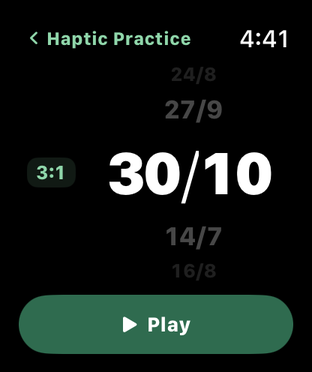
Pick a tempo and tap Play. Your wrist gets a tap at start, top and impact, so you can feel the tempo without earphones or making any sound.
5. Troubleshooting
My swings aren’t counted
Wear it on your lead wrist so it isn’t loose. Very slow swings may not be counted.
The measured tempo isn’t what I expected
Apple Watch measures your wrist movement and calculates the club’s movement from it, so the result may differ slightly from your actual tempo. Wear it on your lead wrist so it isn’t loose, and check that Settings → General → Watch Orientation on Apple Watch matches the wrist you wear it on. Find My Tempo gives a steadier result the more you swing.
It stays on “Getting ready…”
Tap ■ and start again, or reopen Swing Ace. If you didn’t allow the permissions, allow them in Settings → Privacy & Security on Apple Watch.
Results don’t show up on iPhone
They arrive when you open Swing Ace on iPhone. Keep your Apple Watch near your iPhone with Bluetooth on.
The Rules of Golf do not allow using sounds, vibrations or similar aids for swing tempo during a round, so please don’t use Swing Ace in competitions or other rounds where official scores are recorded.
For other questions, see Support.